
OpenSearch UI includes a built-in migration tool that copies saved objects from your existing OpenSearch data sources into workspaces — no manual export/import required.
In-App Migration
Which migration path is right for you?
| Your source | Tenants | Security Plugin | Guide |
|---|---|---|---|
| OpenSearch Serverless collection | Single (global) | No | Migrate from Collection → |
| OpenSearch Service domain | Single (global_tenant) | Yes | Migrate from OpenSearch → |
| OpenSearch Service domain | Multiple (global + private + custom) | Yes | Migrate from OpenSearch (Multi-tenant) → |
| Any previously migrated source | — | — | Rerun Migration → |
Not sure which one you have? Open the migration dialog and select your data source — the tool detects whether it's a collection or domain, whether the Security Plugin is present, and how many tenants exist. The UI will guide you from there.
How it works
- Scans your data source for saved objects, organized by tenant
- Creates a workspace (or updates an existing one) as the migration target
- Imports saved objects into the workspace, linking them to the correct data source
The process runs server-side and typically completes in under a minute.
Accessing the migration tool
From the home page
Click Migrate dashboards from data sources at the bottom of the OpenSearch UI home page.
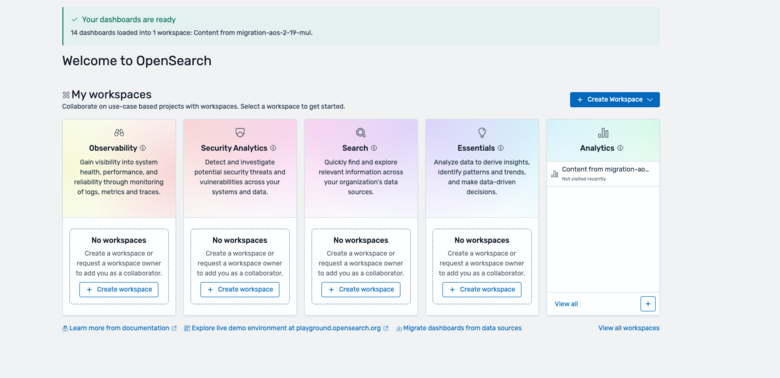
From Data Administration
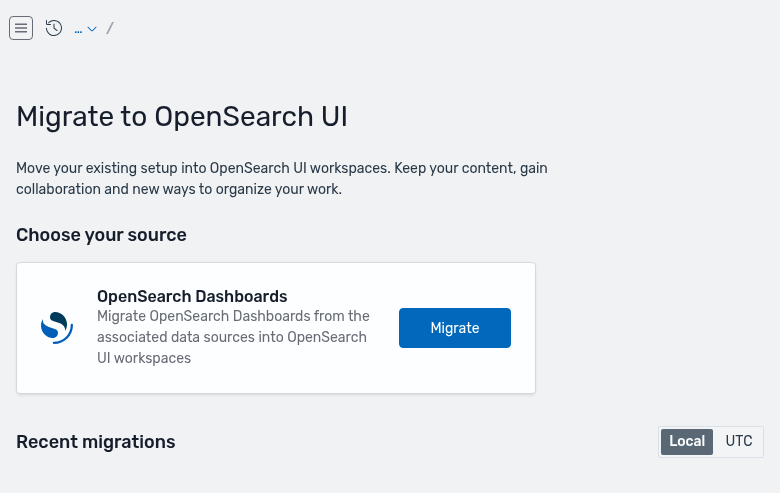
Navigate to Dashboards Management → Migrate to OpenSearch UI (or go directly to the Saved Object Migration app). This page shows:
- Choose your source — lists your OpenSearch Dashboards data sources with a Migrate button
- Recent migrations — history of all past migrations with links to open target workspaces
What migrates
| Included | Not included |
|---|---|
| Dashboards | Data source configurations |
| Visualizations (including Vis Builder, TSVB) | Application settings |
| Index patterns | Alerting monitors |
| Saved searches (Discover) | ISM policies |
| Saved queries | Security configurations |
| URL shortlinks | Notebooks |
Migration modes
When migrating, you choose one of two modes:
- Create new workspace — Fresh start. A new workspace is created with all saved objects from the source.
- Update existing workspace — Sync changes. New objects are added, existing objects are refreshed, and anything you created directly in the workspace stays untouched.
The "Update" option appears automatically when you select a source that has been migrated before. See the Rerun Migration tutorial for details.
Tenant-to-workspace mapping
| Source scenario | What happens |
|---|---|
Single tenant (e.g., global_tenant) | Maps directly to one workspace |
| Multiple tenants — "All in one workspace" | All objects consolidated into a single workspace |
| Multiple tenants — "One workspace per tenant" | Each tenant gets its own workspace (preserves isolation) |
Limits and behavior
- 10,000 saved objects per migration
- One active migration per data source at a time
- Idempotent — retrying with the same parameters returns the existing result
- Non-destructive — source data is never modified
After migration
- Open the target workspace and verify dashboards render correctly
- Confirm index patterns are associated with the correct data source
- Check that saved searches return expected results
- Team members with workspace access can immediately see the migrated content