
This tutorial walks through migrating saved objects from a single-tenant OpenSearch Service domain into an OpenSearch UI workspace.
Migrate from OpenSearch
When to use this guide
Use this guide if your data source is a managed OpenSearch Service domain with:
- The Security Plugin enabled (indicated by a badge in the migration dialog)
- A single tenant — typically just
global_tenant
This is the most common scenario for OpenSearch domains where multi-tenancy hasn't been configured. All users share the same saved objects in the global tenant.
If your domain has multiple tenants (global + private + custom), see Migrate from OpenSearch (Multi-tenant) instead.
Prerequisites
- An OpenSearch Service domain added as an Associated data source in your OpenSearch UI application
- The domain has the Security Plugin enabled
- The domain has a single tenant with saved objects to migrate
Step 1: Open the migration dialog
Navigate to the Migrate to OpenSearch UI page and click the Migrate button.
Step 2: Select your OpenSearch domain
From the Associated data source dropdown, select your domain.
The dialog expands to show source details:
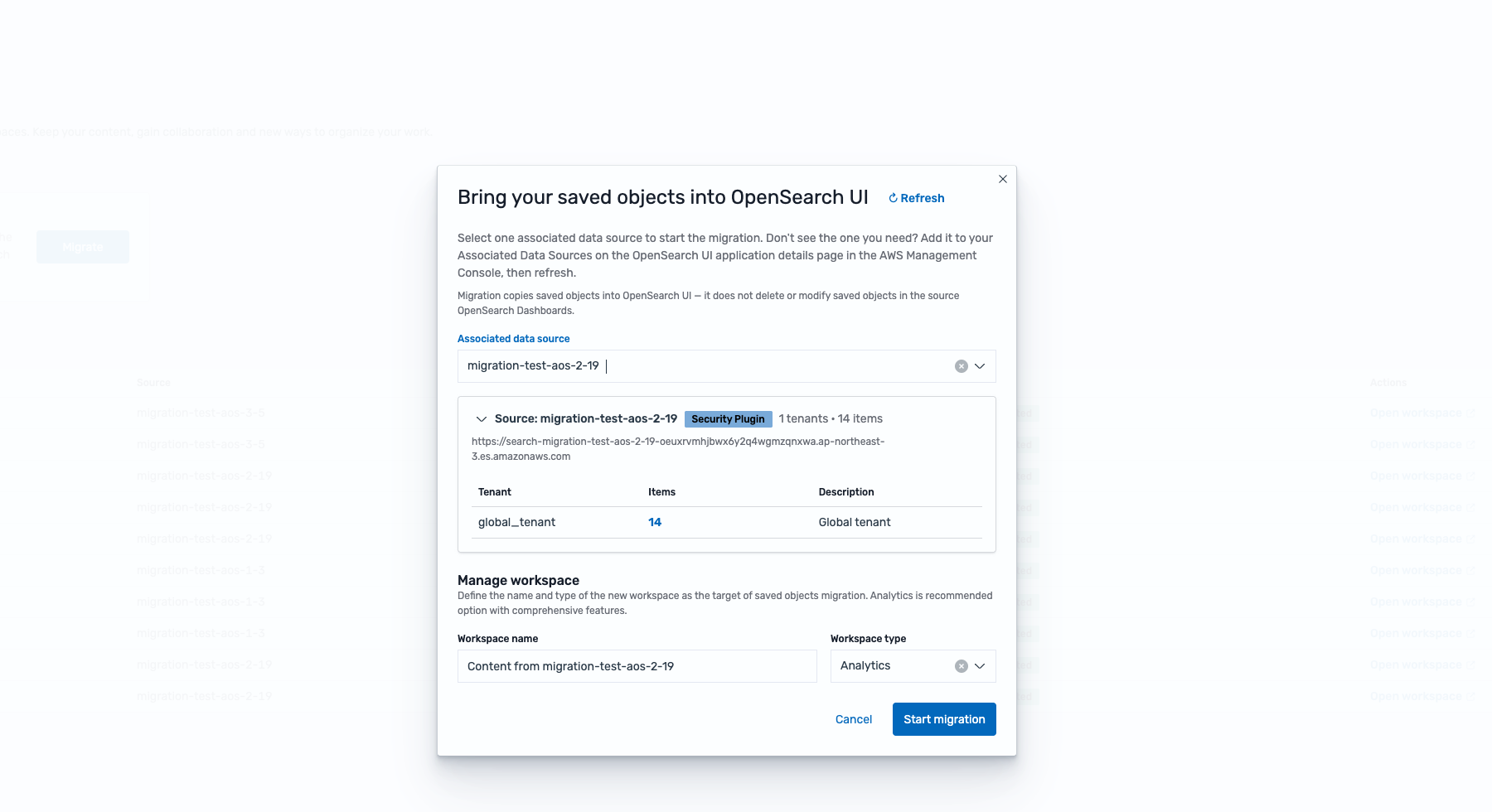
What to notice:
- "Security Plugin" badge — this blue badge confirms the domain uses the Security Plugin for tenant management. The migration tool uses the Security Plugin API to discover and export your saved objects. Collections won't show this badge.
- "1 tenants • 14 items" — single tenant (
global_tenant) with description "Global tenant" - Source endpoint — the domain URL (
.es.amazonaws.com) - Workspace name — pre-filled as "Content from [domain-name]" (editable)
- Workspace type — defaults to "Analytics"
Step 3: Start the migration
Review the workspace name, then click Start migration. The process exports saved objects via the Security Plugin API and imports them into a new workspace.
Step 4: Verify
Navigate back to the migration page. The Recent migrations table confirms the completed migration.
What's next
- Verify dashboards render correctly — especially any that reference specific index patterns
- If you later add more saved objects to the domain, use Rerun Migration to sync them into the same workspace
- If you enable multi-tenancy on this domain in the future, see Migrate from OpenSearch (Multi-tenant)