
This tutorial covers re-running a migration for a data source that has already been migrated — either updating the existing workspace with the latest changes, or starting fresh with a new workspace.
Rerun Migration
When to use this guide
Use this guide when:
- You've already migrated a data source and new saved objects have been added to it
- You want to sync changes from the source into your existing workspace
- You want to start over with a clean workspace (without affecting the previous one)
Understanding the two modes
When you select a previously migrated source, the dialog shows a banner: "This data source has been migrated before." Then it presents a Migration mode choice:
| Mode | What it does | Use when |
|---|---|---|
| Update existing workspace | Syncs the latest saved objects into your existing workspace. New objects are added, changed objects are refreshed. Objects you created directly in the workspace are untouched. | Source has new/updated dashboards you want to pull in. You've customized the workspace and don't want to lose that work. |
| Create new workspace | Creates a brand new workspace with a fresh copy of all saved objects. The previous workspace remains untouched. | You want a clean slate. The existing workspace has diverged too much. You want to compare before/after. |
Prerequisites
- A data source that has been migrated at least once before
- The original target workspace still exists (for "Update" mode)
Step 1: Open the migration dialog
Navigate to the Migrate to OpenSearch UI page and click Migrate. Or click Migrate dashboards from data sources from the home page.
Step 2: Select the previously migrated source
From the dropdown, select your data source. The dialog detects it has been migrated before and shows the Migration mode section.
Option A: Update existing workspace
Select "Update existing workspace" to refresh previously migrated objects with the latest from the source. New objects are added, and anything you created in the workspace stays untouched.
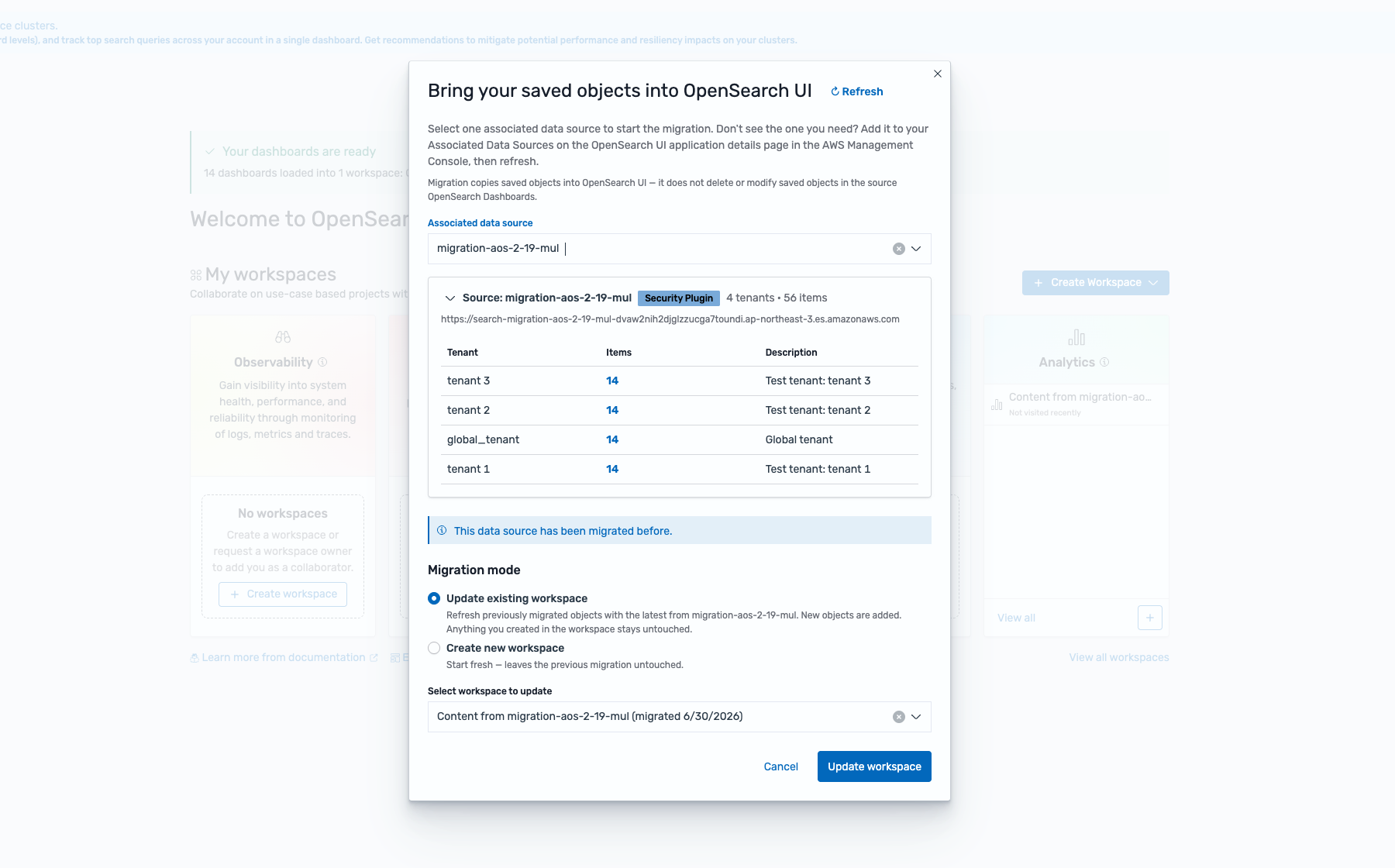
What to notice:
- "This data source has been migrated before" banner (blue info bar) — confirms re-migration mode
- "Update existing workspace" radio button selected
- "Select workspace to update" dropdown — shows the previously created workspace with its migration date (e.g., "Content from migration-aos-2-19-mul (migrated 6/30/2026)")
- "Update workspace" button — replaces the usual "Start migration" button
Click Update workspace to sync the latest saved objects into your chosen workspace.
Option B: Create new workspace
Select "Create new workspace" to start fresh — this leaves the previous migration completely untouched.
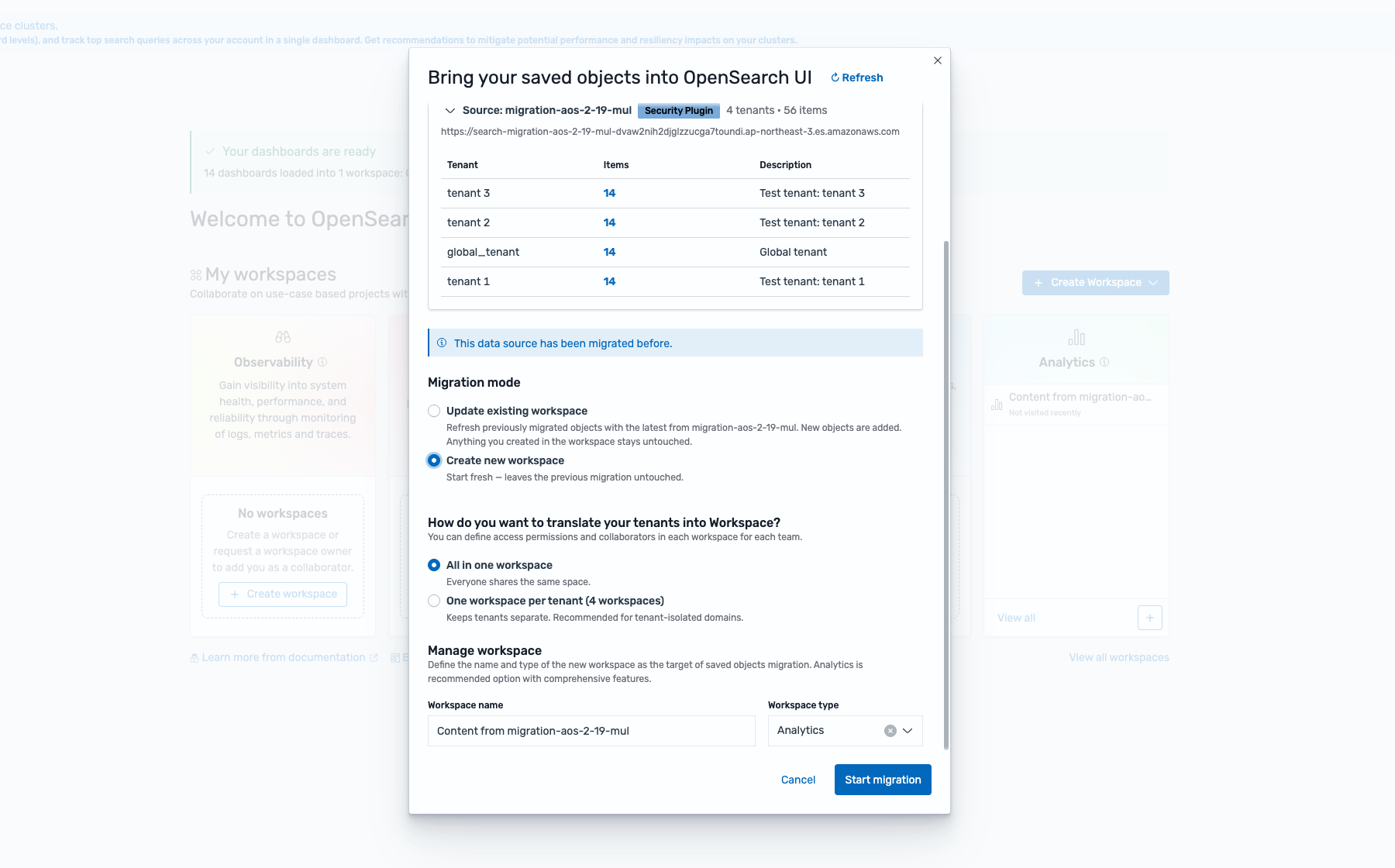
What to notice:
- "Create new workspace" radio button selected
- The dialog shows the same options as a first-time migration: tenant strategy (All in one workspace vs One workspace per tenant), workspace name, and type
- The previous workspace is not affected — you'll have both the old and new workspace side by side
Click Start migration to create a fresh workspace.
Common scenarios
| Scenario | Recommended mode |
|---|---|
| Source has new dashboards, I want them in my workspace | Update existing |
| I customized my workspace and want to keep those changes | Update existing |
| My workspace is a mess, I want to start clean | Create new |
| I want to compare the original migration with current state | Create new (side-by-side) |
| I accidentally deleted objects in my workspace | Update existing (re-adds objects that still exist in source) |
What's next
- Verify the updated/new workspace has the expected content
- If you chose "Update," confirm your custom objects are still intact
- If you chose "Create new," you can delete the old workspace once you're satisfied with the new one